Track Your Hours and Get Paid Accurately
A timesheet calculator automates the tedious work of calculating your hours, breaks, overtime and total pay. You enter when you started, when you finished, how long you took for breaks and your hourly rate. The calculator handles the math and shows you exactly what you should be paid.
No spreadsheets, no manual calculations, no errors.
How to use this timesheet calculator
Step 1: Fill in your report details
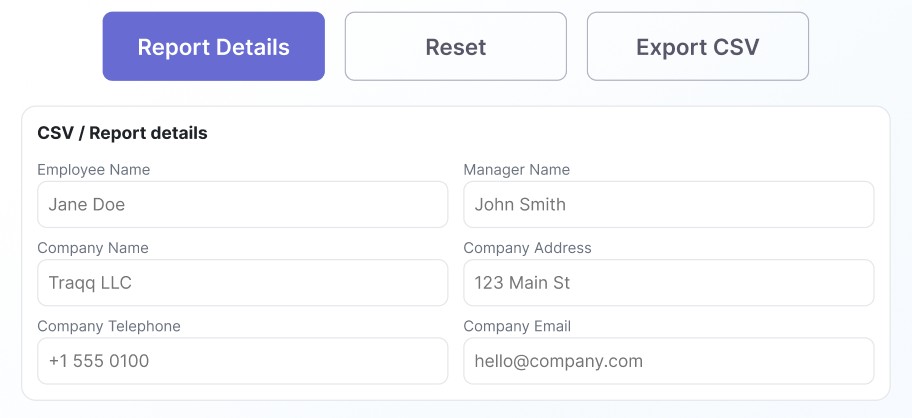
Start with the Report Details section at the top of the page:
- Employee name
- Manager name
- Company information: name, address, phone, and email
These details show up on your exported timesheet, so make sure they’re accurate before you send anything to payroll or clients.
Step 2: Configure your settings
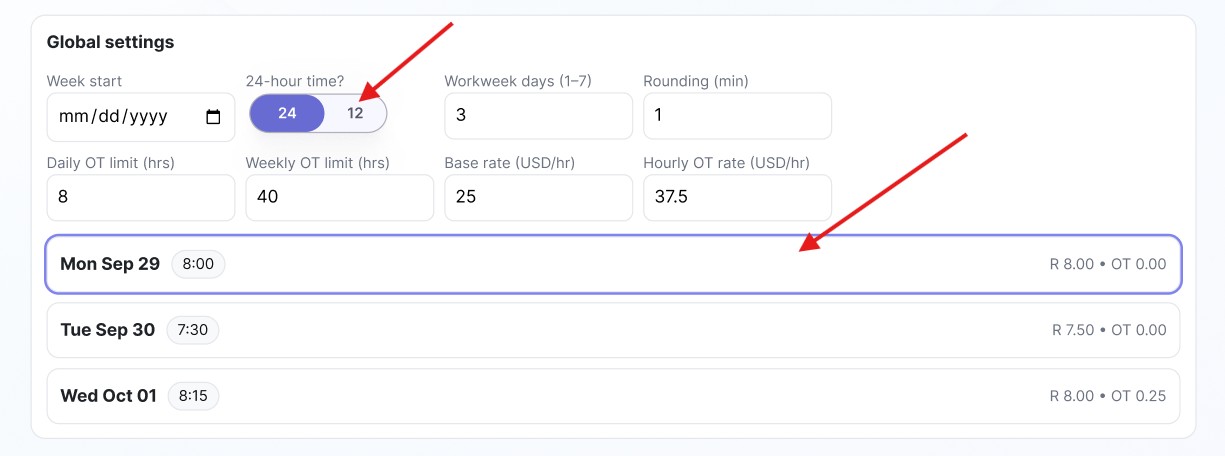
Open the Settings section and adjust the calculator to match how you work:
Week start date: Choose which day your work week begins. Most companies use Monday, but you can set it to match your actual pay period.
24-hour time: Turn this on if you prefer military time (17:00 instead of 5:00 PM). Otherwise, leave it off.
Workweek days (1-7): How many days do you work per week? Standard is 5, but if you’re part-time or work a different schedule, adjust accordingly.
Rounding (min): Some companies round time to the nearest 15 minutes. Set this to match your company’s policy so your calculations align with what payroll does.
Daily OT limit (hrs): When does overtime start for a single day? Usually 8 hours.
Weekly OT limit (hrs): When does overtime kick in for the week? Typically 40 hours.
Base rate (USD/hr): Your standard hourly rate.
OT rate (USD/hr): Your overtime rate. Standard is 1.5x your base rate (so if you make $25/hour, overtime is $37.50/hour).
Step 3: Log your work hours

Click any day in the sidebar to add your hours for that day. You’ll need to fill in:
Leave code: Are you working or taking leave? Leave this at “–” for regular work days. Change it if you’re logging vacation, sick leave, or another type of time off.
Paid time off: Toggle to “Yes” if you’re tracking PTO hours.
Start time: When you started working (like 09:00)
End time: When you finished (like 17:00)
Break (min): How many minutes of unpaid breaks did you take? For example, if you took an hour lunch, enter 60.
Paid break: Check this if your breaks are paid. Most aren’t, but some positions include paid break time.
Project: Add a project name or client code if you’re tracking multiple projects. This is especially useful when you need to bill different clients or track budget allocation.
Note: Add any relevant details about this work session.Working multiple shifts in one day or tracking different projects? Click “+ Add Entry” to log another session. This keeps everything organized when you’re juggling different work blocks.
Step 4: Review your calculations
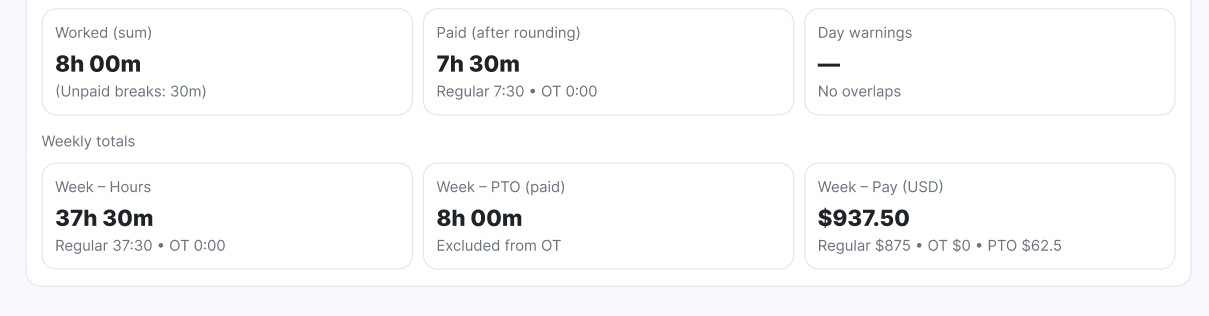
The calculator does all the math automatically. Here’s what you’ll see:
Worked (sum): Total hours you were on the clock that day
Paid (after rounding): Actual hours you’re getting paid for, after breaks and rounding
Day – Pay: What you earned that day, broken down by regular pay, overtime, and PTO
Scroll down to see your Weekly KPIs – your complete week at a glance:
- Total hours worked
- Total PTO hours
- Total weekly pay with regular, overtime, and PTO breakdowns
Everything updates in real-time as you enter data, so you always know exactly where you stand.
Step 5: Export your timesheet
The top right corner has four action buttons:
Undo: Made a mistake? Reverse your last change.
Redo: Undid too much? Put it back.
Reset: Need to start over? This clears everything.
Export CSV: Download your timesheet as a CSV file. You can send this directly to payroll, attach it to client invoices or import it into your accounting software.
Key features explained
Automatic overtime calculation
The calculator tracks when you hit your daily or weekly OT limits and automatically switches to your overtime rate. No manual sorting required.
Real-time updates
Change any number and watch your totals recalculate instantly. No “calculate” button to remember.
Multi-project tracking
Log different projects or clients as separate entries and keep accurate records for billing or budget tracking.
Visual weekly overview
The sidebar shows all your days with quick summaries. It’s an easy way to spot if you forgot to log Tuesday.
Precise break tracking
The calculator knows the difference between paid and unpaid breaks and adjusts your pay correctly.
How to calculate timesheet hours manually
Want to do it by hand? Here’s the process:
Subtract your start time from your end time, then subtract any unpaid breaks.
Example: You worked 9:00 AM to 5:00 PM (8 hours) with a 30-minute unpaid lunch. That’s 7.5 hours of paid work.
Now for overtime: Figure out which hours are regular and which are OT based on your daily and weekly limits, apply the different rates and add everything together.
It gets complicated fast, especially when you’re tracking multiple days, different projects or irregular schedules, that’s exactly why this calculator exists.
Why use an online timesheet calculator?
This calculator handles the math so you can focus on actual work. Track your hours, verify your totals, export your timesheet and you’re done.
- Eliminates errors: Manual calculations go wrong. This doesn’t.
- Saves time: What takes 20 minutes by hand takes 2 minutes with the calculator.
- Creates professional records: Get clean, organized documentation for payroll, billing or taxes.
- Handles overtime correctly: The calculator applies the right rates based on your configured limits.
- Settles disputes: If there’s ever a question about hours or pay, you have detailed records.
- Exports easily: Generate CSV files that work with any payroll or accounting system.
Automate your time tracking with Traqq
Manually filling out timesheets works, but it’s time-consuming and easy to forget. You’re estimating hours at the end of the week, trying to remember which project you worked on Tuesday afternoon, hoping your calculations are right.
Traqq eliminates all of that.
Your time logs are automatically grouped into accurate timesheets by day and project, so your records stay up to date without manual effort.
What makes Traqq different
Privacy-first by design
Traqq helps teams understand how work gets done without screenshots, app and website tracking, or activity monitoring. Employees keep their privacy while managers get reliable time data.
Flexible tracking
Choose how you track time. Use a timer, add time manually, track breaks, and switch between desktop, web, and browser.
Team visibility
Plan schedules, balance workloads, and understand team capacity from one place. See who’s available, who’s overloaded, and where additional resources are needed.
Project visibility
Track time, labor costs, and project progress together. Connect clients, projects, pay rates, and billable hours to understand both time spent and financial performance.
Less admin, more insight
Set up teams, projects, clients, and rates once. Traqq automatically organizes timesheets and reports, turning everyday time tracking into data for payroll, billing, and planning.
Who uses Traqq
Remote teams
Distributed teams use Traqq to understand how time is spent across projects, plan workloads, and keep everyone aligned — without invasive monitoring.
Freelancers and consultants
Track billable hours, manage client work, and create accurate records for invoicing without manual timesheets.
Agencies
Manage multiple clients and projects in one place. Track time, costs, and project performance to keep work profitable.
Hourly employees
Keep accurate records of worked hours, breaks, and projects. Stay in control of your time with clear, reliable timesheets.
From manual to automatic
This timesheet calculator helps you track hours when you need to fill out timesheets manually. But if you’re filling these out regularly, you’re spending time on administrative work instead of actual work.
Traqq turns hours of manual time tracking into zero effort. Install it, start working and let it handle the rest.
More than just time tracker
Traqq helps you understand and improve every aspect of your workday:
The rest of Traqq’s online productivity tools
Whether you want to quickly convert decimal hours to regular time or calculate your overtime pay, our suite of online tools has you covered.